Splittomate è un’app gratuita per dividere le spese di gruppo. Questa guida spiega come creare un gruppo, aggiungere e dividere una spesa, leggere chi deve dare a chi e registrare i pagamenti, anche senza rete. Non serve leggerla tutta: cerca quello che ti serve qui sopra, o parti da una delle scorciatoie.
Scritta con l’aiuto di strumenti di intelligenza artificiale e rivista da Carmine.
Voglio…
Indice
È un'app per dividere le spese di gruppo: ti registri con email, Google o Apple e crei il primo gruppo in pochi tocchi.
Splittomate tiene il conto delle spese fatte insieme ad altre persone — una vacanza, una casa condivisa, una coppia, una cena — e calcola chi deve dare quanto a chi.
Tu registri chi ha pagato che cosa e per chi; ai conti pensa l'app. Alla fine ti dice il numero minimo di pagamenti necessari per mettere tutti in pari.
Splittomate non muove soldi. Non è una banca e non fa pagamenti: tiene solo il conto. I soldi ve li passate come avete sempre fatto, poi lo registrate nell'app.
Due strade, entrambe gratuite:
Subito dopo ti chiediamo un username (da 3 a 20 caratteri, senza spazi: lettere, numeri, punto e trattino basso) e il nome che gli altri vedranno. L'username serve agli amici per trovarti.
Se ti registri prima con l'email e poi entri con Google usando lo stesso indirizzo, finisci nello stesso account: non ne crei due.
Puoi accedere indifferentemente con la tua email o con il tuo username, più la password. Oppure con Google.
Hai dimenticato la password? Tocca Password dimenticata? sotto il campo password. Ti arriva una email con un link per sceglierne una nuova.
Per recuperare la password serve l'indirizzo email: lo username non basta. È una scelta di sicurezza — così nessuno può scoprire l'email di un altro provando gli username.
Una volta entrato resti collegato: l'app non ti chiede la password a ogni apertura.
Appena registrato trovi un gruppo già pronto, con il timbro rosso ESEMPIO sopra: contiene spese finte e serve a guardarti intorno senza paura di rompere qualcosa.
È in sola lettura: puoi aprirlo e guardarlo tutto, ma non modificarlo. Quando non ti serve più, il pulsante rosso in alto lo cancella — e sparisce solo per te.
Se l'hai cancellato e lo rivuoi, lo ritrovi da Profilo → Guida.
Quattro sezioni in fondo allo schermo. Ci si muove tutto da lì.
Il pulsante rotondo + accanto al menu cambia a seconda di dove sei: nei Gruppi crea un gruppo, nei Contatti aggiunge una persona, dentro un gruppo apre il menu per aggiungere una spesa.
Tutto in Profilo:
Un gruppo è un conto condiviso: dentro ci sono le persone, le spese e i saldi.
Da Gruppi, tocca il +. Ti chiede prima di tutto quante persone siete:
La valuta del gruppo non si può più cambiare dopo la creazione, perché cambierebbe il significato di tutte le spese già registrate. Se sbagli, conviene rifare il gruppo finché è vuoto.
Puoi mettere nel gruppo anche persone che non hanno l'app: vedi i segnaposto.
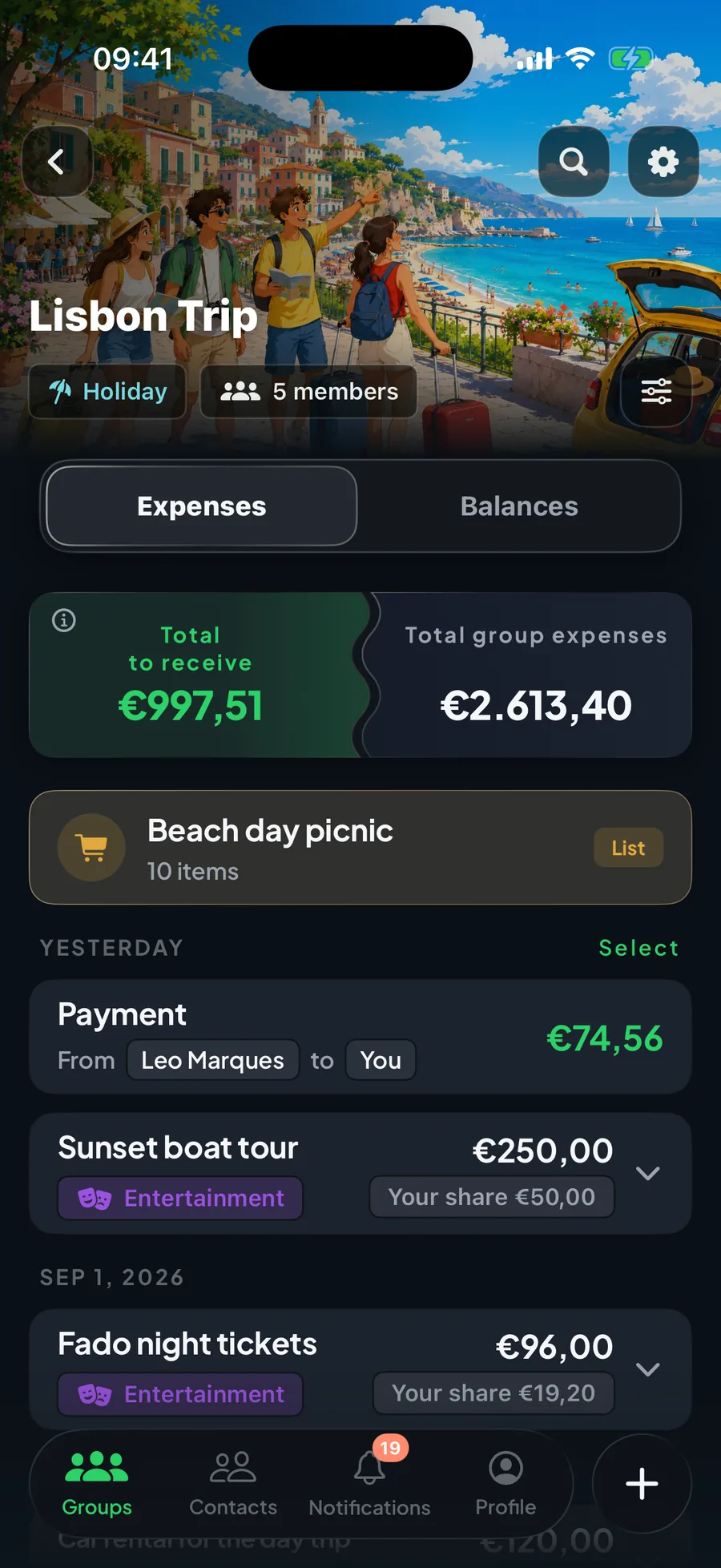
In cima c'è un riquadro diviso in due: a sinistra il tuo saldo in questo gruppo (verde se devi avere, corallo se devi dare) e a destra il totale speso dal gruppo. Toccando la parte del saldo passi direttamente ai Saldi.
Sotto ci sono due schede:
In alto trovi anche la lente per cercare e l'icona dei filtri; la rotellina apre le impostazioni del gruppo.
Dentro il gruppo, + → Persone. Vedi chi c'è già e puoi aggiungere i tuoi contatti.
Per togliere qualcuno serve che sia in pari con tutti: finché ha conti aperti non si può rimuovere, altrimenti resterebbero debiti senza padrone. Chi viene rimosso può rientrare solo se un membro lo reinvita.
Nei gruppi a due persone non si aggiunge né si toglie nessuno: i due membri sono fissi. Per chiudere il rapporto si elimina il gruppo.
Archiviare — trascina la scheda del gruppo verso sinistra nell'elenco. Il gruppo sparisce dalla lista ma non si perde nulla: lo ritrovi con il pulsante Gruppi Archiviati in alto, e lo puoi ripristinare quando vuoi. È la cosa giusta da fare per una vacanza finita.
Abbandonare — esci tu, ma le tue spese restano registrate per gli altri. Chi ha creato il gruppo non può abbandonarlo.
Eliminare — cancella il gruppo e tutte le sue transazioni, per tutti e senza possibilità di tornare indietro. Si può fare solo quando tutti sono in pari.
Nel dubbio, archivia: è reversibile. Elimina solo quando sei sicuro che a nessuno servirà più rivedere quei conti.
La lente cerca fra descrizioni, categorie e nomi delle persone.
L'icona dei filtri apre qualcosa di più preciso: categoria, membri coinvolti, chi ha pagato, importo da/a, date da/a, solo le spese che mi riguardano, nascondi i pagamenti fra membri.
Con un filtro attivo, il totale in cima diventa Totale spese filtrate: così vedi subito quanto pesa quello che hai selezionato — per esempio quanto avete speso in ristoranti durante tutto il viaggio.
Scrivi chi ha pagato, quanto e per chi: Splittomate divide al centesimo, in parti uguali o a misura.
Dentro il gruppo tocca + → Nuova spesa. Ti guida in pochi passaggi:
Puoi anche cambiare la data (se registri una spesa di ieri), scegliere una categoria e scrivere una nota.
La somma delle parti fa sempre esattamente il totale: se l'importo non è divisibile, i centesimi che avanzano vengono assegnati a una persona sola invece di sparire.
Nei gruppi a due c'è, accanto a Spesa da dividere, la voce Prestito. Serve quando non c'è niente da dividere: hai semplicemente dato dei soldi all'altro, o lui a te.
Ti chiede solo la direzione («Tu hai prestato a…» / «… ha prestato a te»), una descrizione e l'importo. Chi ha prestato risulta in credito per l'intera cifra.
Nell'elenco ogni riga mostra la descrizione, chi ha pagato e — sulla destra — quanto quella spesa pesa per te.
Toccandola si apre e vedi il dettaglio: Pagato da, l'elenco di chi partecipa con la quota di ciascuno, la nota e la data. Se la spesa è nata da una lista della spesa, trovi anche il collegamento Vedi lista.
Correggere — apri la spesa e tocca la matita: si riapre il modulo completo, con importo, partecipanti, data e tutto il resto.
Solo la nota — non serve la matita: apri la spesa e tocca direttamente il riquadro delle note, scrivi, e tocca fuori per salvare. Questa correzione non manda nessuna notifica agli altri.
Eliminare — trascina la riga verso sinistra e conferma. Per cancellarne molte insieme, tieni premuto su una riga per entrare in selezione.
Chi può modificare o eliminare dipende dai permessi del gruppo. Di norma ognuno può toccare solo le spese che ha creato o pagato, mentre chi ha creato il gruppo può intervenire su tutte.
Lo calcola Splittomate, con il giro di pagamenti più corto e il perché di ogni numero.
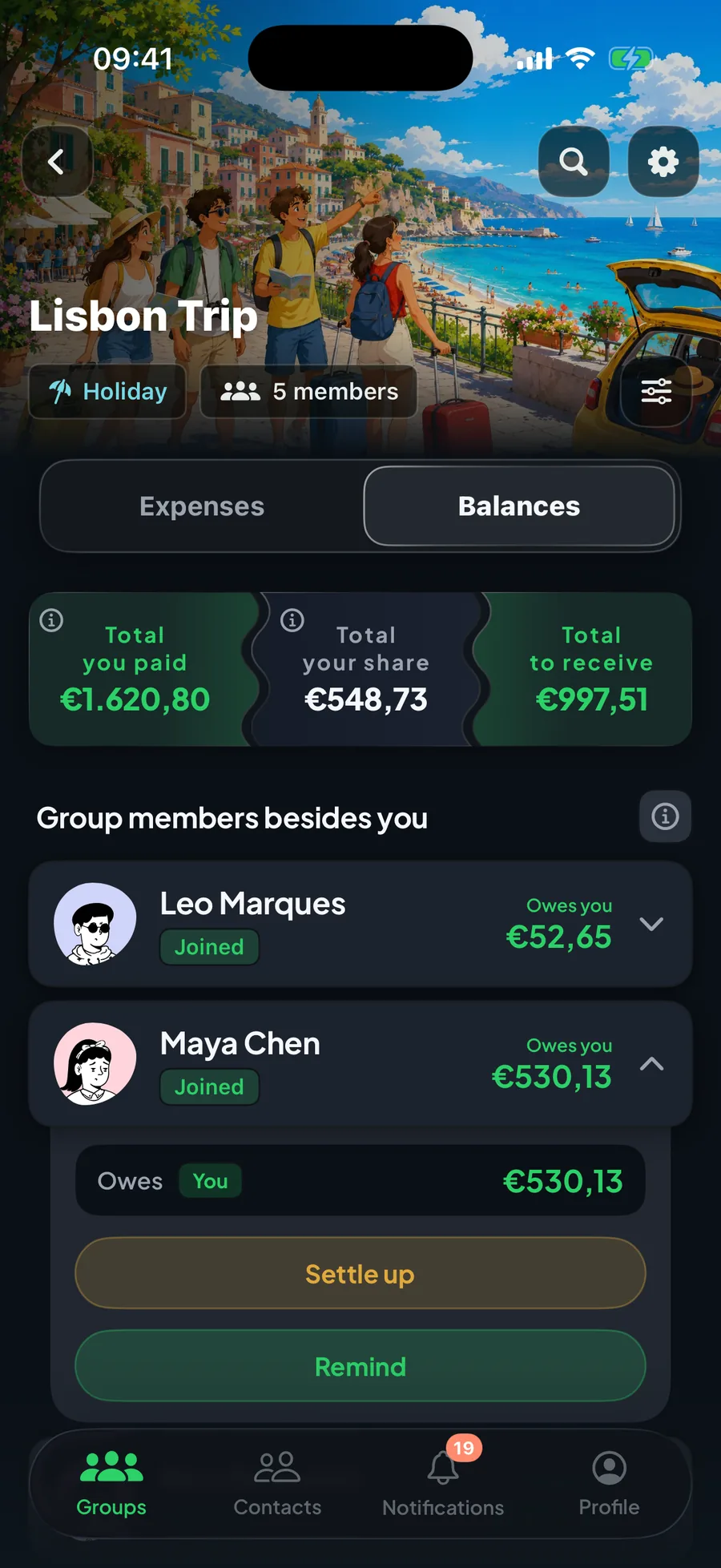
Nella scheda Saldi trovi l'elenco delle persone del gruppo, e per ognuna una di queste tre cose:
Il conto è sempre lo stesso: quello che hai anticipato meno la tua parte. Se hai pagato 100 di cena per quattro, hai anticipato 100 e la tua parte è 25: sei in credito di 75.
Toccando una persona la scheda si apre e mostra il dettaglio della vostra situazione.
Perché Splittomate riduce i pagamenti al minimo. Se in cinque vi doveste pagare tutti a vicenda servirebbero decine di bonifici; l'app li accorcia, quindi il destinatario può cambiare.
Quello che non cambia mai è la cifra: ognuno paga o incassa esattamente il proprio totale, al centesimo.
Sotto ogni saldo c'è un «perché?»: toccalo e l'app ti spiega da quali spese nasce quel numero.
Può anche succedere che tu debba dei soldi a una persona ma nel gruppo risulti solo in credito: significa che il tuo debito viene assorbito da qualcun altro nella semplificazione, e a te tocca solo incassare.
I soldi ve li passate voi, in contanti, con bonifico o PayPal: nell'app registri che è successo e il saldo si aggiorna.
Nella scheda Saldi, apri la persona e tocca Salda. Scegli cosa è successo:
Di default chiude tutto il conto. Se avete regolato solo una parte, scrivi l'importo: il resto resta aperto.
Se sei tu a ricevere e registri l'incasso, il pagamento è confermato all'istante — chi ha incassato è la persona giusta per dirlo. Se invece registri un pagamento che hai fatto tu, l'altro riceve una notifica e deve confermare.
Se con la stessa persona hai conti aperti in più gruppi, non serve entrare in ognuno. Vai in Contatti, aprila e tocca Salda: da lì puoi dichiarare Pagato tutto, Ricevuto tutto oppure il Pareggio completo, e i saldi di tutti i gruppi che avete in comune si azzerano insieme.
Nella sezione Sistema Conti, in fondo ai Saldi, accanto a chi ti deve qualcosa c'è Ricorda: manda una notifica educata, con la cifra.
Funziona solo con le persone registrate all'app — a chi non lo è non arriverebbe da nessuna parte: prima va invitato.
Se in Profilo → Pagamenti hai messo il tuo nome PayPal.me, nel promemoria arriva anche il pulsante Paga con PayPal, e chi ti deve i soldi li manda senza uscire dall'app. Se non hai ancora un nome PayPal.me, lo crei sulla pagina ufficiale di PayPal.Me.
È una lista condivisa del gruppo che, a fine spesa, diventa una spesa divisa.
Dentro il gruppo, + → Lista della spesa. Le dai un nome, scegli chi partecipa (tutti i membri o solo alcuni) e chi può aggiungere articoli.
Da lì ognuno scrive cosa serve. Al supermercato si spuntano gli articoli man mano che finiscono nel carrello: passano nella sezione Presi, e chi è a casa lo vede in tempo reale.
Se scrivi un articolo che c'è già, l'app te lo fa notare prima di aggiungerlo due volte.
Alla cassa, tocca Converti in spesa e scrivi quanto hai speso davvero.
Nasce una normale spesa del gruppo, pagata da te e divisa in parti uguali fra chi partecipava alla lista. La lista resta consultabile, segnata come Convertita, e dalla spesa c'è il collegamento per riaprirla.
Le persone con cui dividi le spese, e il quadro d'insieme con ciascuna.
In Contatti, tocca il +. Tre modi:
Si può, ed è normale: un contatto creato scrivendo solo il nome è un segnaposto. Puoi metterlo nei gruppi, registrare spese e prestiti a suo nome, e i conti tornano lo stesso.
Quello che non può fare è vedere: finché non si registra, quella persona non riceve niente e non vede nulla. Quando lo inviti e accetta, il segnaposto diventa il suo account e si porta dietro tutto lo storico.
Aprendo una persona vedi i gruppi che avete in comune e, per ognuno, come state messi. Sotto ci sono i pulsanti Salda (se c'è qualcosa in sospeso) e Invita su Splittomate (se non è ancora registrata).
La matita in alto serve a cambiare il nome con cui tu lo vedi: se lo chiami «Bucca» ma si chiama Giovanni, scrivi Bucca — lo vedrai così solo tu.
Trascina la scheda del contatto verso sinistra.
Archivia lo toglie dall'elenco, ed è reversibile: lo ritrovi nel filtro Archiviati e riappare da solo se tornate ad avere una spesa insieme. Si può archiviare solo chi è in pari con te.
Elimina amico lo toglie dai tuoi contatti; nei gruppi in comune resta, con i suoi saldi: lì non cambia niente.
Con un invito lo porti dentro; con il link di sola lettura e una password a 6 cifre gli fai solo vedere spese e saldi.
Apri la persona in Contatti e tocca Invita su Splittomate. Ti prepara un link da mandargli su WhatsApp, Telegram o come preferisci.
Quando lo apre e si registra, il segnaposto che avevi creato diventa il suo account: si ritrova tutte le spese che avevate già insieme, e tu ricevi una notifica.
Due modi:
Nelle impostazioni del gruppo c'è il Link di sola lettura. Attivandolo ottieni un indirizzo web e una password di 6 cifre.
Chi li riceve apre la pagina dal telefono o dal computer e vede spese e saldi esattamente come nell'app, ma non può toccare niente. Non serve né installare né registrarsi.
Puoi rigenerare la password (chi aveva la vecchia viene tagliato fuori) o disattivare il link quando non serve più.
Se chi guarda decide di usare l'app, dalla pagina stessa può registrarsi e entrare nel gruppo, senza che tu debba fare altro.
Cosa ti arriva, e come scegliere cosa ricevere.
Aprendo una notifica trovi anche il pulsante per andare dritto al punto: Vedi nel gruppo, Salda, Pagato/Ricevuto.
Profilo → Notifiche: c'è un interruttore generale e poi uno per ogni tipo (spese, pagamenti, promemoria, gruppi, contatti, lista della spesa, novità).
Spegnerle non ti fa perdere niente: l'elenco dentro l'app continua ad aggiornarsi lo stesso. Smette solo di squillare il telefono.
Se non ti arriva nessuna notifica, controlla che il telefono le permetta a Splittomate. Le istruzioni ufficiali sono quelle di Google per Android e di Apple per iPhone.
Per cancellarle: tieni premuto su una notifica per entrare in selezione, oppure usa Seleziona in alto.
Chi sei per gli altri, e tutte le impostazioni.
La foto arriva dal tuo account Google se ti sei registrato con Google, e compare in tutti i punti dell'app in cui appare il tuo nome.
Profilo → Elimina account. È definitivo: il tuo account e i tuoi dati personali vengono rimossi, e ti arriva una email di conferma scritta.
Nei gruppi condivisi diventi un segnaposto non registrato: i conti e lo storico degli altri restano corretti e ognuno continua a vedere il nome che aveva per te. Sarebbe scorretto verso gli altri cancellare anche le spese che li riguardano.
Se un domani ti registri di nuovo sarai un account nuovo: non c'è modo di ricollegarti al vecchio.
Si può fare anche dal sito, senza l'app: splittomate.com/delete.
Qui sotto le domande che tornano più spesso, ognuna con la sua risposta.
Sì. L'app tiene una copia di tutto sul telefono: puoi aprire i gruppi, guardare i saldi e aggiungere spese anche in aereo o in montagna.
Quello che scrivi resta segnato In attesa e parte da solo appena torna la rete. In alto compare una scritta Offline per ricordartelo.
Servono invece la connessione le cose che coinvolgono altri all'istante: unirsi a un gruppo, creare un invito, mandare un promemoria.
Normalmente arriva da sola in pochi secondi. Se non succede:
Se dopo questo ancora non si vede, l'altra persona potrebbe averla registrata offline: le arriverà quando riprende la linea.
Quasi sempre è una di queste tre cose:
Ogni gruppo ha la sua valuta, scelta alla creazione e non più modificabile. Le spese di quel gruppo sono tutte in quella valuta.
Per questo i saldi di gruppi in valute diverse non vengono sommati: l'app non inventa cambi. Nella scheda di un contatto li vedi elencati gruppo per gruppo.
Con la stessa persona puoi avere due gruppi privati se sono in valute diverse — uno in euro e uno in sterline, per esempio.
L'app non si aggiorna da sola. Quando esce una versione nuova, la scarichi di nuovo da splittomate.com e la installi sopra a quella che hai: i tuoi dati restano dove sono, perché stanno sul tuo account.
Scrivici: admin@splittomate.com, oppure da Profilo → Supporto, che apre l'email già compilata.
Se stai segnalando un problema, aiuta molto sapere cosa stavi facendo e la versione dell'app, che trovi scritta in fondo alla schermata Profilo.
Nessun risultato. Prova con una parola diversa.
Splittomate is a free app to split group expenses. This guide explains how to create a group, add and split an expense, see who owes whom and record payments, even with no connection. You are not meant to read it all: search above for what you need, or start from one of the shortcuts.
Written with the help of artificial intelligence tools and reviewed by Carmine.
I want to…
Contents
It is an app to split group expenses: you sign up with email, Google or Apple and create your first group in a few taps.
Splittomate keeps track of money spent together with other people — a holiday, a shared flat, a couple, a dinner — and works out who owes what to whom.
You record who paid for what and for whom; the app does the maths. At the end it tells you the smallest number of payments needed to settle everyone up.
Splittomate moves no money. It is not a bank and makes no payments: it only keeps the score. You pay each other the way you always have, then record it in the app.
Two ways, both free:
Right after, we ask for a username (3 to 20 characters, no spaces: letters, numbers, dot and underscore) and the name other people will see. The username is how friends find you.
If you sign up with email and later sign in with Google using the same address, you land in the same account — you don't end up with two.
You can sign in with either your email or your username, plus the password. Or with Google.
Forgotten your password? Tap Forgot password? under the password field. You get an email with a link to pick a new one.
Password recovery needs the email address: a username is not enough. That is deliberate — otherwise anyone could discover someone else's email by trying usernames.
Once you are in, you stay in: the app does not ask for your password every time.
A group is already waiting for you, stamped EXAMPLE in red: it holds made-up expenses and exists so you can look around without fear of breaking anything.
It is read-only: you can open and inspect all of it, but not change it. When you are done, the red button at the top deletes it — and it disappears for you only.
Deleted it and want it back? Profile → Guide.
Four sections at the bottom of the screen. Everything starts there.
The round + button next to the menu changes with the screen: in Groups it creates a group, in Contacts it adds a person, inside a group it opens the menu to add an expense.
All under Profile:
A group is a shared account: the people in it, the expenses and the balances.
From Groups, tap +. The first question is how many of you there are:
A group's currency cannot be changed after it is created, because it would change the meaning of every expense already recorded. If you get it wrong, redo the group while it is still empty.
You can also put people without the app into a group: see placeholders.
At the top there is a card split in two: on the left your balance in this group (green if you are owed, coral if you owe) and on the right the total the group has spent. Tapping the balance half takes you straight to Balances.
Below it, two tabs:
At the top you also get the magnifier to search and the filter icon; the cog opens the group settings.
Inside the group, + → People. You see who is already in and can add your contacts.
To remove someone they must be settled up with everyone: while they have open accounts they cannot be removed, or there would be debts with no owner. Someone removed can only come back if a member re-invites them.
In two-person groups nobody is added or removed: the two members are fixed. To close things down, delete the group.
Archive — swipe the group card left in the list. It leaves the list but nothing is lost: find it again under Archived groups at the top and restore it whenever you like. This is the right thing to do with a holiday that is over.
Leave — you walk out, but your expenses stay recorded for everyone else. Whoever created the group cannot leave it.
Delete — removes the group and every transaction in it, for everybody, with no way back. Only possible when everyone is settled up.
When in doubt, archive: it can be undone. Delete only when you are sure nobody will ever want to look at those accounts again.
The magnifier searches descriptions, categories and people's names.
The filter icon opens something more precise: category, people involved, who paid, amount from/to, dates from/to, only expenses that involve me, hide payments between members.
With a filter on, the total at the top becomes Filtered total: so you can see what your selection is worth — how much the whole trip cost in restaurants, for instance.
Write who paid, how much and for whom: Splittomate splits it to the cent, equally or by custom amounts.
Inside the group tap + → New expense. It walks you through a few steps:
You can also change the date (for something you bought yesterday), pick a category and write a note.
The shares always add up to exactly the total: when an amount doesn't divide evenly, the leftover cents go to one person instead of vanishing.
In two-person groups, next to Shared expense, there is Loan. It is for when there is nothing to split: you simply gave the other person money, or they gave you some.
It only asks the direction ("You lent to…" / "… lent to you"), a description and the amount. Whoever lent ends up in credit for the whole sum.
In the list each row shows the description, who paid and — on the right — what that expense is worth to you.
Tap it and it opens: Paid by, everyone taking part with their share, the note and the date. If the expense came from a shopping list, there is a See list link too.
To fix it — open the expense and tap the pencil: the full form comes back, with amount, participants, date and everything else.
Just the note — no pencil needed: open the expense, tap the notes box, type, and tap outside to save. This edit notifies nobody.
To delete — swipe the row left and confirm. To delete several at once, long press a row to enter selection.
Who may edit or delete depends on the group permissions. Normally everyone can only touch the expenses they created or paid, while whoever created the group can touch all of them.
Splittomate works it out, with the shortest round of payments and the reason behind every number.
The Balances tab lists the people in the group, each with one of three things:
The sum is always the same: what you put in, minus your share. Pay 100 for a dinner for four and you put in 100 while your share is 25: you are 75 in credit.
Tap a person and the card opens with the detail of where you two stand.
Because Splittomate keeps payments to a minimum. If five people all paid each other it would take dozens of transfers; the app shortens the chain, so the recipient can change.
What never changes is the figure: everyone pays or receives exactly their own total, to the cent.
Under each balance there is a "why?": tap it and the app shows which expenses that number comes from.
It can also happen that you owe one person money but the group shows you only in credit: that means your debt is absorbed by someone else in the simplification, and all you have to do is collect.
You move the money yourselves, in cash, by transfer or PayPal: in the app you record that it happened and the balance updates.
In the Balances tab, open the person and tap Settle. Then say what happened:
By default it closes the whole account. If you only settled part of it, type the amount: the rest stays open.
If you are the one receiving and you record it, the payment is confirmed instantly — whoever got the money is the right person to say so. If you record a payment you made, the other person is notified and has to confirm.
If you have open accounts with the same person in several groups, you don't have to go into each one. Go to Contacts, open them and tap Settle: from there you can declare Paid everything, Received everything or a Full settle-up, and the balances in every shared group clear together.
In the Settle up section at the bottom of Balances, next to anyone who owes you there is Remind: it sends a polite notification with the amount.
It only works with people who are registered — for anyone who isn't there is nowhere for it to land: invite them first.
If you filled in your PayPal.me name under Profile → Payments, the reminder also carries a Pay with PayPal button, and whoever owes you can send the money without leaving the app. If you don’t have a PayPal.me name yet, you create it on the official PayPal.Me page.
It is a shared group list that turns into a split expense at the till.
Inside the group, + → Shopping list. Give it a name, choose who takes part (all members or only some) and who may add items.
From there everyone writes down what is needed. At the shop you tick items off as they go into the trolley: they move to the Taken section, and whoever is at home sees it happen live.
If you write an item that is already there, the app points it out before you add it twice.
At the till, tap Convert into expense and type what you actually spent.
You get a normal group expense, paid by you and split equally between whoever was on the list. The list stays readable, marked Converted, and the expense links back to it.
The people you split with, and the whole picture with each of them.
In Contacts, tap +. Three ways:
You can, and it is normal: a contact created by typing a name is a placeholder. You can put them in groups, record expenses and loans in their name, and the maths still works.
What they cannot do is see: until they register, that person receives nothing and sees nothing. When you invite them and they accept, the placeholder becomes their account and brings the whole history along.
Open a person and you see the groups you share and where you stand in each. Below are the Settle button (if anything is outstanding) and Invite to Splittomate (if they aren't registered yet).
The pencil at the top changes the name you see them under: if you call them "Bucca" but their name is Giovanni, write Bucca — only you will see it.
Swipe the contact card left.
Archive takes them out of the list and can be undone: find them under the Archived filter, and they come back by themselves if you share an expense again. Only someone settled up with you can be archived.
Delete friend removes them from your contacts; in shared groups they stay, balances and all — nothing changes there.
An invite brings them in; the read-only link with a 6-digit password just lets them see expenses and balances.
Open the person under Contacts and tap Invite to Splittomate. It prepares a link to send over WhatsApp, Telegram or however you like.
When they open it and register, the placeholder you created becomes their account: they find all the expenses you already shared, and you get a notification.
Two ways:
What reaches you, and how to choose what does.
Opening a notification also gives you the button to go straight there: See in group, Settle, Paid/Received.
Profile → Notifications: one master switch, then one per type (expenses, payments, reminders, groups, contacts, shopping list, news).
Turning them off loses you nothing: the list inside the app keeps updating. Only the phone stops buzzing.
If no notification arrives at all, check that your phone allows them for Splittomate. The official instructions are Google’s for Android and Apple’s for iPhone.
To clear them: long press one to enter selection, or use Select at the top.
Who you are to other people, and every setting.
Your photo comes from your Google account if you signed up with Google, and shows up everywhere your name does.
Profile → Delete account. It is final: your account and personal data are removed, and you get a written confirmation by email.
In shared groups you become an unregistered placeholder: other people's accounts and history stay correct and everyone keeps seeing the name they had for you. Deleting the expenses that involve them would be unfair to them.
If you ever sign up again you will be a new account: there is no way to reconnect you to the old one.
It can also be done from the website, without the app: splittomate.com/delete.
Below are the questions that come back most often, each with its answer.
Yes. The app keeps a copy of everything on the phone: you can open groups, look at balances and add expenses on a plane or up a mountain.
What you write is marked Pending and leaves by itself as soon as the network is back. An Offline label appears at the top to remind you.
What does need a connection is anything that involves other people right now: joining a group, creating an invite, sending a reminder.
It normally arrives by itself within seconds. If it doesn't:
If it still isn't there, the other person may have recorded it offline: it will arrive when they get a line back.
It is nearly always one of three things:
Every group has its own currency, chosen when it is created and fixed after that. Every expense in that group is in that currency.
Which is why balances from groups in different currencies are never added together: the app does not invent exchange rates. On a contact's page you see them listed group by group.
With the same person you can have two private groups if they are in different currencies — one in euros and one in pounds, say.
The app does not update itself. When a new version comes out you download it again from splittomate.com and install it over the one you have: your data stays where it is, because it lives on your account.
Write to us: admin@splittomate.com, or use Profile → Support, which opens the email ready to send.
If you are reporting a problem, it helps a lot to know what you were doing and the app version, written at the bottom of the Profile screen.
No results. Try a different word.
